顯示具有 ssl 標籤的文章。 顯示所有文章

2015年9月22日 星期二

CentOS 7 + Nginx 1.8.0 + PHP 5.6 + MariaDB 10.0 (LEMP) + SSL

1. change ulimits

vim /etc/security/limits.conf

* soft nofile 65535
* hard nofile 65535

2. Install MariaDB

vim /etc/yum.repos.d/MariaDB.repo
[mariadb]
name = MariaDB
baseurl = http://yum.mariadb.org/10.0/centos7-amd64
gpgkey=https://yum.mariadb.org/RPM-GPG-KEY-MariaDB
gpgcheck=1

yum install MariaDB-server MariaDB-client
chkconfig mysql on
mysql_secure_installation
setting firewalld for mysql

3. Install Nginx

rpm -Uvh http://nginx.org/packages/centos/7/noarch/RPMS/nginx-release-centos-7-0.el7.ngx.noarch.rpm

yum install nginx
systemctl start nginx
systemctl enable nginx

setting firewalld for nginx

4.  Install PHP

https://webtatic.com/packages/php56/
rpm -Uvh https://dl.fedoraproject.org/pub/epel/epel-release-latest-7.noarch.rpm
rpm -Uvh https://mirror.webtatic.com/yum/el7/webtatic-release.rpm
yum install php56w php56w-fpm php56w-mysql

vim /etc/php.ini
;cgi.fix_pathinfo=1
cgi.fix_pathinfo=0

Reference : https://www.digitalocean.com/community/tutorials/how-to-install-linux-nginx-mysql-php-lemp-stack-on-centos-7

What we are looking for in this file is the parameter that sets cgi.fix_pathinfo. This will be commented out with a semi-colon (;) and set to "1" by default.
This is an extremely insecure setting because it tells PHP to attempt to execute the closest file it can find if a PHP file does not match exactly. This basically would allow users to craft PHP requests in a way that would allow them to execute scripts that they shouldn't be allowed to execute.
We will change both of these conditions by uncommenting the line and setting it to "0" like this:


5. Edit /etc/php-fpm.d/www.conf


[global]
pid = /usr/local/php/var/run/php-fpm.pid
error_log = /var/log/httpd/php-fpm.log


[www]
;listen = 127.0.0.1:9000
listen = /var/run/php-fpm/php-fpm.sock

listen.owner = nobody
listen.group = nobody
listen.mode = 0666


;user = apache
user = nginx
;group = apache
group = nginx

6. Edit /etc/nginx/conf.d/default.conf


 location / {
        root   /usr/share/nginx/html;
        index  index.php index.html index.htm;
    }

location ~ \.php$ {
        root   /usr/share/nginx/html;
        try_files $uri = 404;
        fastcgi_pass  unix:/var/run/php-fpm/php-fpm.sock;
        fastcgi_index index.php;
        fastcgi_param SCRIPT_FILENAME $document_root$fastcgi_script_name;
        include fastcgi_params;
}


7 Restart php-fpm and nginx

systemctl restart php-fpm
systemctl restart nginx

8. Test PHP

vim /usr/share/nginx/html/info.php

http://serverip/info.php


9. Create Self-Signed Cert
openssl req -x509 -nodes -sha512 -newkey rsa:2048 -keyout cert.key -out cert.pem.csr -days 65536

Common Name (eg, your name or your server's hostname) []: mysite.example.com

chmod 600 cert.key
chmod 600 cert.pem.csr
copy cert.key /etc/nginx
copy cert.pem.csr /etc/nginx

vim /etc/nginx/conf.d/my_host_ssl.conf

server {
    listen       443 ssl;
    server_name  mysite.example.com;

    ssl_certificate      /etc/nginx/cert.pem.csr;
    ssl_certificate_key  /etc/nginx/cert.key;


    ssl_session_cache shared:SSL:1m;
    ssl_session_timeout  5m;

    ssl_ciphers "ECDHE-RSA-AES256-GCM-SHA384:ECDHE-RSA-AES128-GCM-SHA256:DHE-RSA-AES256-GCM-SHA384:DHE-RSA-AES128-GCM-SHA256:ECDHE-RSA-AES256-SHA384:ECDHE-RSA-AES128-SHA256:ECDHE-RSA-AES256-SHA:ECDHE-RSA-AES128-SHA:DHE-RSA-AES256-SHA256:DHE-RSA-AES128-SHA256:DHE-RSA-AES256-SHA:DHE-RSA-AES128-SHA:ECDHE-RSA-DES-CBC3-SHA:EDH-RSA-DES-CBC3-SHA:AES256-GCM-SHA384:AES128-GCM-SHA256:AES256-SHA256:AES128-SHA256:AES256-SHA:AES128-SHA:DES-CBC3-SHA:HIGH:!aNULL:!eNULL:!EXPORT:!DES:!MD5:!PSK:!RC4";


#set the ssl_ciphers to resolve chrome display "is encrypted with obsolete cryptography"
   ssl_prefer_server_ciphers   on;
    ssl_protocols      TLSv1.2;

    location / {
        root   /usr/share/nginx/html;
        index  index.php index.html index.htm;
    }
}


2015年9月8日 星期二

SSL Certificate in Java

1. Use open_ssl to test SSL connection


openssl s_client -connect IP:443


2. Import ca into java keystore


keytool -import -alias TWCAroot -keystore /usr/java/jdk1.6.0_35/jre/lib/security/cacerts -trustcacerts -file root.cer 


3. List ca in keystore


keytool -list -v -keystore cacerts
keytool -list -v -keystore cacerts  -alias twcaroot

4. Delete ca in keystore

keytool -delete -alias aliasname  -keystore /usr/java/jdk1.6.0_35/jre/lib/security/cacerts

5. Test CA


A. save the SSLPoke.java  file

import javax.net.ssl.SSLSocket;
import javax.net.ssl.SSLSocketFactory;
import java.io.*;

/** Establish a SSL connection to a host and port, writes a byte and
 * prints the response. See
 * http://confluence.atlassian.com/display/JIRA/Connecting+to+SSL+services
 */
public class SSLPoke {
    public static void main(String[] args) {
                if (args.length != 2) {
                        System.out.println("Usage: "+SSLPoke.class.getName()+" ");
                        System.exit(1);
                }
                try {
                        SSLSocketFactory sslsocketfactory = (SSLSocketFactory) SSLSocketFactory.getDefault();
                        SSLSocket sslsocket = (SSLSocket) sslsocketfactory.createSocket(args[0], Integer.parseInt(args[1]));

                        InputStream in = sslsocket.getInputStream();
                        OutputStream out = sslsocket.getOutputStream();

                        // Write a test byte to get a reaction :)
                        out.write(1);

                        while (in.available() > 0) {
                                System.out.print(in.read());
                        }
                        System.out.println("Successfully connected");

                } catch (Exception exception) {
                        exception.printStackTrace();
                }
        }
}


B. javac SSLPoke.java

C. java SSLPoke  192.168.1.1 443
javax.net.ssl.SSLHandshakeException: sun.security.validator.ValidatorException: PKIX path building failed: sun.security.provider.certpath.SunCertPathBuilderException: unable to find valid certification path to requested target
        at com.sun.net.ssl.internal.ssl.Alerts.getSSLException(Alerts.java:174)
        at com.sun.net.ssl.internal.ssl.SSLSocketImpl.fatal(SSLSocketImpl.java:1764)
        at com.sun.net.ssl.internal.ssl.Handshaker.fatalSE(Handshaker.java:241)
        at com.sun.net.ssl.internal.ssl.Handshaker.fatalSE(Handshaker.java:235)
        at com.sun.net.ssl.internal.ssl.ClientHandshaker.serverCertificate(ClientHandshaker.java:1206)
        at com.sun.net.ssl.internal.ssl.ClientHandshaker.processMessage(ClientHandshaker.java:136)
        at com.sun.net.ssl.internal.ssl.Handshaker.processLoop(Handshaker.java:593)
        at com.sun.net.ssl.internal.ssl.Handshaker.process_record(Handshaker.java:529)
        at com.sun.net.ssl.internal.ssl.SSLSocketImpl.readRecord(SSLSocketImpl.java:958)
        at com.sun.net.ssl.internal.ssl.SSLSocketImpl.performInitialHandshake(SSLSocketImpl.java:1203)
        at com.sun.net.ssl.internal.ssl.SSLSocketImpl.writeRecord(SSLSocketImpl.java:654)
        at com.sun.net.ssl.internal.ssl.AppOutputStream.write(AppOutputStream.java:100)
        at com.sun.net.ssl.internal.ssl.AppOutputStream.write(AppOutputStream.java:114)
        at SSLPoke.main(SSLPoke.java:23)
Caused by: sun.security.validator.ValidatorException: PKIX path building failed: sun.security.provider.certpath.SunCertPathBuilderException: unable to find valid certification path to requested target
        at sun.security.validator.PKIXValidator.doBuild(PKIXValidator.java:323)
        at sun.security.validator.PKIXValidator.engineValidate(PKIXValidator.java:217)
        at sun.security.validator.Validator.validate(Validator.java:218)
        at com.sun.net.ssl.internal.ssl.X509TrustManagerImpl.validate(X509TrustManagerImpl.java:126)
        at com.sun.net.ssl.internal.ssl.X509TrustManagerImpl.checkServerTrusted(X509TrustManagerImpl.java:209)
        at com.sun.net.ssl.internal.ssl.X509TrustManagerImpl.checkServerTrusted(X509TrustManagerImpl.java:249)
        at com.sun.net.ssl.internal.ssl.ClientHandshaker.serverCertificate(ClientHandshaker.java:1185)
        ... 9 more
Caused by: sun.security.provider.certpath.SunCertPathBuilderException: unable to find valid certification path to requested target
        at sun.security.provider.certpath.SunCertPathBuilder.engineBuild(SunCertPathBuilder.java:174)
        at java.security.cert.CertPathBuilder.build(CertPathBuilder.java:238)
        at sun.security.validator.PKIXValidator.doBuild(PKIXValidator.java:318)
        ... 15 more


D. openssl s_client -connect 192.168.1.1:443

save BEGIN END into test.cer (include BEGIN and END lines)

E. import the cert
keytool -import -alias TWCAroot -keystore /usr/java/jdk1.6.0_35/jre/lib/security/cacerts -trustcacerts -file test.cer

F. java SSLPoke  192.168.1.1 443
Successfully connected


2013年12月16日 星期一

StartSSL 免費憑證


摘自 http://blog.mowd.tw/index.php?pl=950


前一陣子朋友介紹了 StartSSL 這個可以全球唯一可以申請免費 SSL 證書的網站
申請後的 SSL 證書有效期限為一年
經過一番測試之後,Mowd 終於申請成功並且安裝到 Apache
現在就可以透過 https://ssl.mowd.tw 來瀏覽經過 https 加密的網誌囉


StartSSL 註冊過程如下:

1. 使用 IE 連到 http://www.startssl.com,點選右上角鑰匙圖案進入註冊頁
Mowd 之前要用 Chrome 註冊時,StartSSL 提示因為憑證匯入問題,不建議使用 Chrome ,於是 Mowd 是用 IE 註冊的

2. 點選 Sign-up 按鈕進行註冊


3. 接下來會看到一份註冊表格,填寫的資料必須正確
因為申請後 StartSSL 會進行審核,如果隨便寫寫就不會過了
送出表單後要等一下才會收到確認信,Mowd 大概十分鐘內就收到了
確認信中包含一串驗證碼,將驗證碼貼入表格終究可以完成驗證


4. 完成驗證後會要求你輸入登入 StartSSL 的憑證密碼,並且自動將登入憑證安裝到 IE 瀏覽器
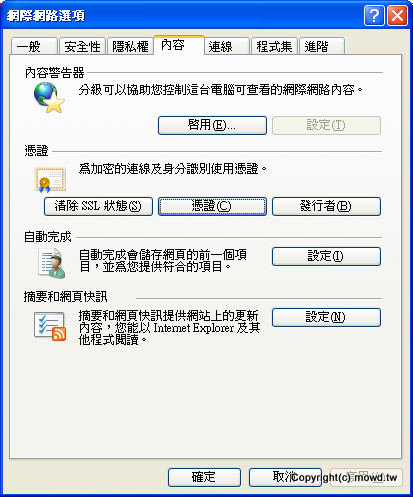
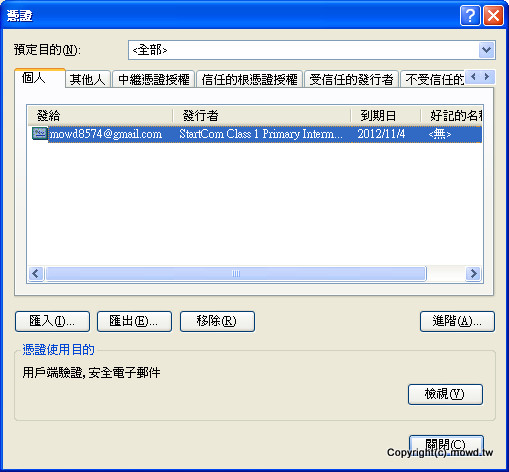
日後如果要匯出登入憑證到其他電腦的話
可以到 IE 的「網際網路選項 --> 內容 --> 憑證」的個人分頁匯出


註冊完成之後,再來是申請 SSL 憑證
StartSSL 的免費帳戶可以申請 Class1 憑證
每一個憑證可以擁有一個主網域跟一個子網域
如果需要多個子網域的話,憑證可以分開申請,憑證數量一樣沒有限制
申請步驟如下:
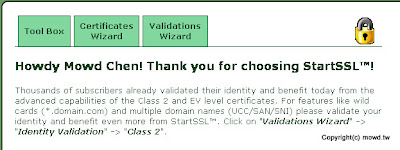
1. 登入 StartSSL 後會進入 Control Panel 介面
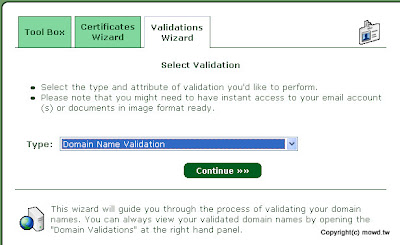
首先必須要驗證你是網域的管理者
所以先點選 Validations Wizard
驗證方式選擇 Domain Name Validation


2. 接下來輸入主網域名稱,不要包含子網域


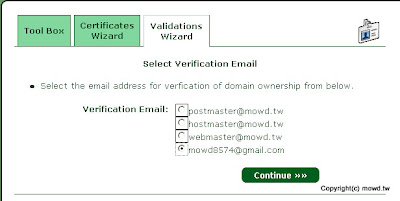
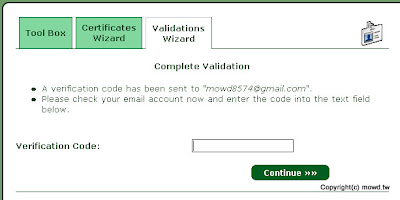
3. StartSSL 會根據網域註冊資料,發送驗證碼到你註冊網域的 E-mail
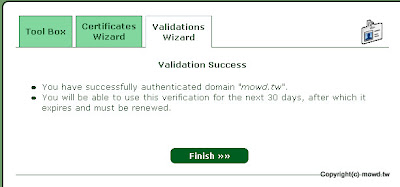
把驗證碼輸入表單送出後就完成網域驗證了


完成網域驗證後,接下來就是申請 SSL 證書了
1. 首先點選 Certificates Wizard 進行申請流程
選擇 Web Server SSL/TLS Certificate


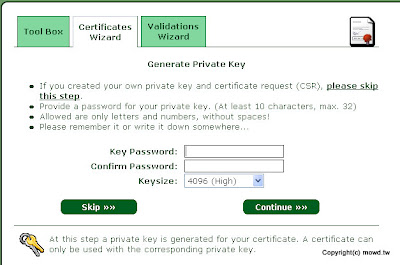
2. 接下來要產生私鑰,先輸入一個大於 10 位數的密碼
密碼只能包含英文和數字
至於 Keysize,Mowd 是選 4096 位元


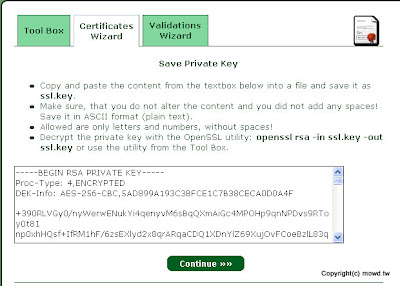
3. 下一個頁面就是剛剛我們產生的私鑰內容
這個私鑰文件是經過加密的,稍後我們要將他解密
把文字方塊內容儲存下來,並命名為 ssl.key


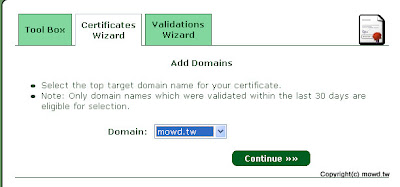
4. 接下來選擇我們要產生 SSL 證書的主網域以及子網域


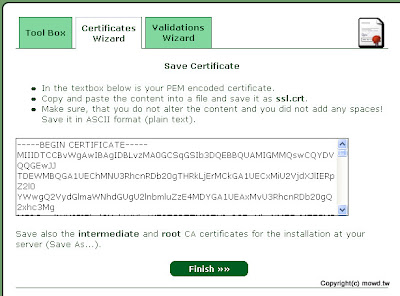
5. 最後文字方塊裡面的就是 SSL 證書
將文字方塊裡面的文字儲存起來,檔名為 ssl.crt
另外記得要下載 intermediate 和 root CA 證書
如果缺少這兩個,Firefox 會出現「sec_error_unknown_issuer」
並且出現警告頁面告訴你不要信任 StartSSL 的 SSL 證書
http://www.startssl.com/certs/sub.class1.server.ca.pem
http://www.startssl.com/certs/ca.pem


以上步驟我們可以得到私鑰 ssl.key 以及 SSL 證書 ssl.crt
接下來我們要在 Apache 啟用 SSL
Mowd 是使用 CentOS 5.5
所以接下來 Mowd 都以 CentOS 5.5 的環境來介紹
1. 首先檢查 Apache 有沒有安裝 mod_ssl
可以透過 yum install mod_ssl 來安裝

2. 接下來將 ssl.key 上傳到 /etc/pki/tls/private/
將 ssl.crt 上傳到 /etc/pki/tls/certs/
將 sub.class1.server.ca.pem 以及 ca.pem 上傳到 /etc/pki/tls/

3. 前面提到我們取得的私鑰 ssl.key 是加密過後的
如果沒有解密的話,每次 Apache 啟動後都要輸入密碼
解密步驟如下:
#cd /etc/pki/tls/private/
#openssl rsa -in ssl.key -out ssl.key
接下來會提示你輸入私鑰密碼,輸入完就解密囉

4. 再來打開 /etc/httpd/conf.d/ssl.conf
將 ssl.conf 內各項憑證的路徑及檔案修改如下
SSLCertificateFile /etc/pki/tls/certs/ssl.crt
SSLCertificateKeyFile /etc/pki/tls/private/ssl.key
SSLCertificateChainFile /etc/pki/tls/sub.class1.server.ca.pem
SSLCACertificateFile /etc/pki/tls/ca.pem

5. 儲存後重新載入 Apache,SSL 就生效囉
SSL 測試網頁:https://ssl.mowd.tw


Firefox不信任StartSSL证书问题解决

8/22/2012

StartSSL证书的支持率一直是一个很大的问题,今天在Apache中安装完StartSSL证书之后遇到了以下情况:
  • Firefox提示“此连接是不受信任的”,同时Opera则在地址栏左侧状态中提示“服务器试图应用安全措施,但没有成功”;
  • 桌面版本Chrome显示已经加密,但iOS版Chrome则提示“此网站尚未经过身份验证。”;
  • Win7下IE9和iOS版本Safari都显示已经加密。
理论上讲,StartSSL支持除了Opera外所有的主流浏览器,因此Firefox遇到的不受信任的连接是不正常情况。
经过查看官网文档和Google后找到了问题的原因:Firefox仅包含了StartCom的根证书,而中间证书需要服务器提供,一般网上的Howto都不会提及这一点,所以会出现类似问题。

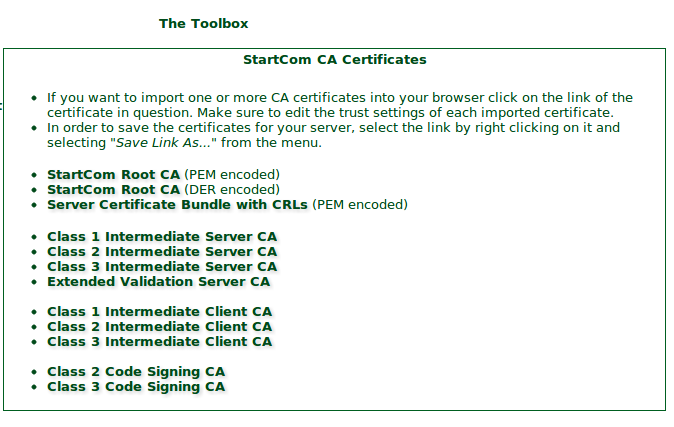
CA证书的下载界面
以下解决方法基于Jason Weathered的文章《A free SSL certificate for your web server》改进(之前Kaijia是根据《Setting up SSL: Ubuntu and Apache 2》架设的SSL,其中证书和Key文件都放在/etc/apache2/ssl/文件夹中,此例中假定你将域名的.crt和.key文件也放在/etc/apache2/ssl/中):
首先你需要在StartSSL的控制板的Tool Box->StartCom CA Certificates中下载StartCom CA证书,需要下载StartCom Root CA (PEM encoded)、你的证书等级对应的CA证书(免费的Class 1证书下载Class 1 Intermediate Server CA)。下载完成后将这两个pem文件复制到服务器的/etc/apache2/ssl/文件夹中。
在命令行下运行以下命令:
1
2
3
4
cd /etc/apache2/ssl
mv ca.pem startssl.ca.crt
mv sub.class1.server.ca.pem startssl.sub.class1.server.ca.crt
cat startssl.sub.class1.server.ca.crt startssl.ca.crt > startssl.chain.class1.server.crt
然后修改原来SSL部分的Apache设置,Kaijia虚拟域名的原有设置为:
1
2
3
4
5
6
7
<VirtualHost *:443>
DocumentRoot /var/www/yourdomain.com
ServerName yourdomain.com
SSLEngine On
SSLCertificateFile /etc/apache2/ssl/yourdomain.crt
SSLCertificateKeyFile /etc/apache2/ssl/yourdomain.key
</VirtualHost>
在原有设置中增加一条:SSLCertificateChainFile /etc/apache2/ssl/startssl.chain.class1.server.crt,更改为如下:
1
2
3
4
5
6
7
8
<VirtualHost *:443>
DocumentRoot /var/www/yourdomain.com
ServerName yourdomain.com
SSLEngine On
SSLCertificateFile /etc/apache2/ssl/yourdomain.crt
SSLCertificateKeyFile /etc/apache2/ssl/yourdomain.key
SSLCertificateChainFile /etc/apache2/ssl/startssl.chain.class1.server.crt
</VirtualHost>
之后重启Apache:
1
service apache2 restart
刷新浏览器后Firefox显示连接安全,而Opera在Linux下显示安全,Windows下仍然提示“服务器试图应用安全措施,但没有成功”,可能与系统根证书目录,但毕竟StartCom自己都没说过支持Opera,这样说来问题也是解决了。